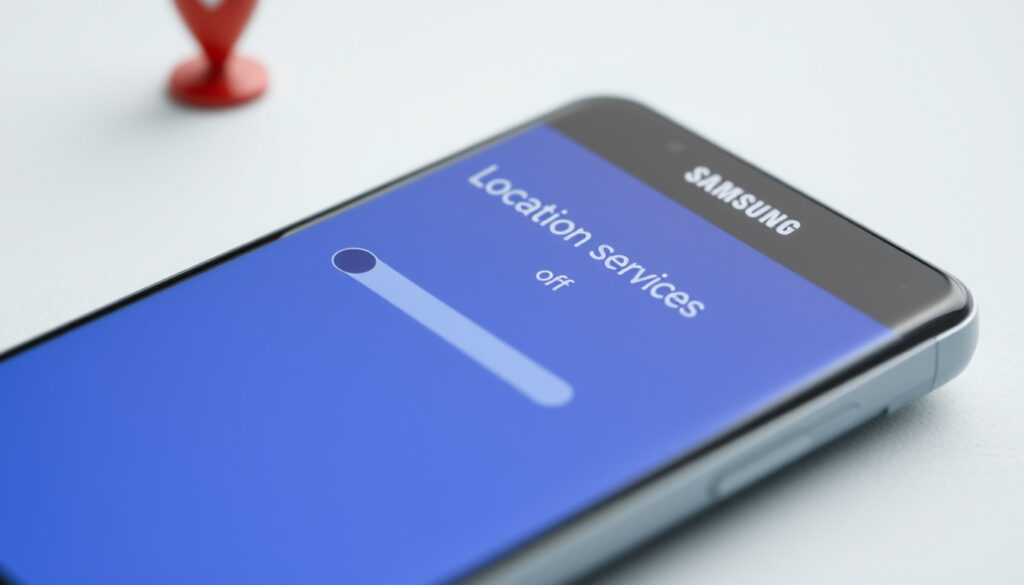
How to Turn Off Location on Android: Samsung Steps
Turning off location on Android is more straightforward than most users realize, but the layered controls catch people off guard. Android hides location toggles across Settings, Quick Settings, and individual app permissions—and Samsung layers its own Find My services on top. This guide covers every angle: standard Android steps, Samsung Galaxy specifics, and how to disable location discreetly without alerting anyone who has access to your location.
Primary toggle: Settings > Location · Quick access: Quick Settings menu · Find My Device: Security settings · App permissions: Individual control
Quick snapshot
- Location toggle fully disables GPS/Wi-Fi positioning (Malwarebytes guide)
- No notification sent to shared contacts when you turn location off (Trevor Nace YouTube guide)
- Whether Samsung system UI apps continue tracking after global toggle (Samsung Privacy Video)
- Whether carrier-level tracking operates independently of OS location toggle (Samsung Privacy Video)
- Malwarebytes published a detailed disable guide in May 2024
- Samsung Find My Mobile deactivation guide remains ongoing
- Consider separately disabling Find My Device and Find My Mobile
- Review app permissions for granular control
The table below summarizes the main setting paths referenced throughout this guide.
| Setting | Path |
|---|---|
| Main toggle location | Settings app > Location |
| Quick access | Swipe down twice > Location icon |
| Sharing control | Location > Location services > Google Location Sharing |
| Find My Device | Settings > Security > Find My Device |
| Find My Mobile | Settings > Biometrics and security > Find My Mobile |
How do I stop my Android from being tracked?
The main location switch on Android lives in Settings. Turning it off stops your device from using GPS, Wi-Fi scanning, and network-based positioning.
Accessing main location settings
- Open Settings on your Android device
- Tap Location (the wording may vary by device—some use “Location services” or “Privacy and safety” > “Location”)
- Toggle the top switch to Off
When you tap the toggle, you’ll see a popup that reads “Some apps may not function properly” (Malwarebytes, 2024). This warning covers apps that rely on location data for core features—maps, ride-sharing, weather—but Android won’t send ongoing notifications alerting you that location is off.
“It’s very easy to turn off your location on your phone without anyone else knowing.”
— Trevor Nace, Guide Narrator (YouTube Quick Guide)
Disabling location globally means Google Maps navigation won’t know where you are, and any app that needs your position will stop working until you toggle it back on.
Disabling Google Location Accuracy
- In the same Location settings menu, tap Location services or Google Location Accuracy
- Toggle Improve Location Accuracy off
- This disables Wi-Fi scanning and Bluetooth scanning for location, leaving only GPS active
Managing app location permissions
- Go to Settings > Location > App location permissions (Malwarebytes)
- Review the list of apps with location access
- Tap each app and set it to Not allowed to revoke location access without affecting other apps
The implication: app-specific revocations work without triggering any alert to the app itself, giving you discreet control over individual services.
How to turn off location on Android Samsung?
Samsung Galaxy devices run Android with Samsung’s One UI overlay. The core location toggle is the same, but Samsung adds its own location-tracking services that require separate attention.
Samsung-specific steps
- Open Settings and tap Location
- Toggle the main switch to Off
Samsung’s official guide for the Philippines market recommends updating your software before changing location settings: navigate to Settings > Software update > Download and install (Samsung PH Official) to ensure you have the latest security protections.
Quick panel toggle
- Swipe down from the top of your screen to open the Quick Settings panel
- Look for the Location icon (often grouped with Wi-Fi and Bluetooth)
- Tap it to toggle location off without diving into menus (Malwarebytes)
Holding the Location icon in the Quick Settings panel opens the granular controls: tap Location permissions to jump directly to the app-level settings (Malwarebytes). This is the fastest path for per-app adjustments without navigating through Settings.
“Samsung is saying, ‘Nope. You cannot turn off your location services even though you think you turned it off, but it’s actually still on.'”
— Video Narrator, Privacy Researcher (Samsung Privacy Video)
One UI location options
- Find My Mobile: Go to Settings > Biometrics and security > Find My Mobile and toggle off (Samsung Official)
- Find My Device (Google): Go to Settings > Biometrics & Security > Find My Device and toggle off (Malwarebytes)
The catch: Samsung’s Find My Mobile tracks your device location through Samsung’s servers, which operates independently from the standard Android location toggle. Both need to be disabled for comprehensive location off.
How do you secretly disable your location?
If your goal is to switch off location without other people knowing—like if you share your location with family or friends through Google Maps—a standard toggle is discreet, but there are nuances.
Avoiding notifications
- Turning location off through Settings > Location does not send a notification to people who have access to your location (YouTube Quick Guide)
- The Quick Settings toggle produces the same result—no alerts are sent
Silent permission changes
- Go to Settings > Location > App location permissions
- Set individual apps to Not allowed
- The app cannot tell the difference between “location off globally” and “this app specifically denied”—no notice is sent
Disabling without alerts
One important detail: when you disable location globally, anyone viewing your shared location in Google Maps will see your last known position frozen in place. They won’t receive an alert that you’ve turned location off (YouTube Quick Guide). They would only notice if they checked and wondered why you’re not moving.
If you re-enable location, Google Maps will immediately resume live updates to shared contacts. There’s no delay, so re-enabling is visible in real time.
The implication: the silent disable option only works as long as location stays off—re-enabling it betrays your location to anyone monitoring it.
How to Stop Sharing Your Location Without Notifying Anyone?
Location sharing through Google Maps is separate from the device’s location toggle. You can stop sharing your real-time location without affecting other location-dependent apps on your phone.
Google Maps location sharing
- Open Google Maps
- Tap your profile picture > Location sharing
- Select any active shares and tap Stop to end sharing with specific people
Per Google’s official guidance, stopping location sharing does not trigger a notification to the people you were sharing with (Google Support). They simply won’t see new location updates.
App sharing controls
- Some apps have their own location-sharing settings independent of Android
- Check individual apps (ride-sharing, social media, dating apps) for location sharing toggles
- Stopping sharing in an individual app does not affect the main device location setting
Family Link or third-party
If you’re using Google Family Link (common for parental controls on children’s devices), location sharing is managed through the Family Link app, not the device Settings. Parents can see a child’s location as long as the child’s device has location enabled and is connected.
The pattern: device-level toggles control hardware positioning, but app-layer sharing services operate on their own terms and may continue reporting until explicitly stopped in each service.
Can someone track my phone if my location is off?
Turning off location on Android significantly reduces tracking, but it’s not a complete shield. Understanding what continues to work—and what stops—helps you decide if additional steps are needed.
Remaining tracking methods
- GPS and Wi-Fi positioning stop when the main toggle is off
- Network-based tracking (cell tower triangulation) typically also stops
- However, Wi-Fi scanning for other nearby networks (not your connection) may continue in some Android versions
Find My Device impact
- Both Google Find My Device and Samsung Find My Mobile require location services to actively locate your device
- If location is off, these services show the last known location only (YouTube Quick Guide)
- You cannot ring, lock, or remotely wipe a device that has no location signal
The implication: if your primary concern is recovering a lost or stolen device, keeping location enabled for Find My Device is worth the trade-off. If privacy is the goal, you may need to accept reduced device recovery capability.
Carrier or app alternatives
Some carriers offer device management services that operate independently of Android’s location toggle. These are harder to disable without carrier cooperation. Similarly, apps that were granted location permission before you turned it off may retain cached location data—they just can’t fetch fresh updates.
Apps with “Allow all the time” background permission may still request location in some Android versions even after the main toggle is off. Reviewing Settings > Location > App location permissions and setting each app to “Not allowed” or “Allow only while using” closes this gap.
What this means: turning off the main toggle reduces exposure but leaves residual entry points through system services, carrier backdoors, and cached app data.
Samsung steps for disabling location closely align with standard Android procedures, as covered in detailed Japanese Android guide alongside privacy and battery tips.
Frequently asked questions
Where is location on Android phone?
Location settings live in the Settings app under “Location” or “Location services.” On Samsung devices, you may also find it under “Privacy and safety” or directly in the main settings list.
How do I deactivate location tracking?
Open Settings > Location and toggle the main switch off. For more granular control, go to Location > App location permissions and revoke access for individual apps.
How do I stop my phone from knowing my location?
Turn off the main location toggle in Settings. Also disable Google Location Accuracy and check that no apps have “Allow all the time” background location permission.
How to change location on Android phone?
Android doesn’t have a built-in virtual location feature—you’ll need a third-party app for that. To change your actual reported location, use the Settings > Location toggle to enable or disable GPS positioning.
How to turn on GPS on Android phone?
Open Settings > Location, toggle the main switch on, and optionally enable Improve Location Accuracy for better positioning using Wi-Fi and Bluetooth.
How to change Google location on Android?
Google uses your device’s location settings as the primary source. To change what’s reported, adjust Settings > Location or modify app-level permissions under Location > App location permissions.
How do I manage location settings on Android?
Manage location through Settings > Location (or Location services). From there you can toggle the main switch, adjust accuracy settings, manage app permissions, and control Google Location Sharing.
Related reading
- iPhone SE 3rd Generation Guide
- Upload Blog for Tech Platforms
- Managing location prompts (Google Android Support)
- eSafety Australia location guide
More related posts
 Carolyn Bessette: Life, Style, and Tragic Loss
 Juan Mata: Career, Stats, Clubs, and Where He Plays Now
 St Thomas Aquinas: Natural Law and the Summa Theologiae
 Megan Katseye: Age, Nationality, Health, and Hiatus Facts
 Sophie Dee: Biography, Net Worth, and Career Highlights
 Serena Williams: Health, Family, Wealth, and Retirement Explained
 Jason Donovan: Neighbours Star’s Life and Career
 Bathroom Vanity Units Ireland: Buying Guide & Prices 2025
